Send WhatsApp notifications (fees, attendance, exams, etc.) from Smart School using your SendWAPI account.
📋 Table of Contents
- Prerequisites
- Step 1 — Get Your SendWAPI Credentials
- Step 2 — Replace the Customsms.php File
- Step 3 — Configure API Key & Sender Number
- Step 4 — Enable Custom SMS Gateway in Smart School
- Step 5 — Test the Integration
- Troubleshooting
- API Reference
Download Link
✅ Prerequisites
Before you begin, make sure you have:
| RequirementDetails | |
| Smart School | Version 7.x or later installed and running |
| SendWAPI Account | Register at sendwapi.com |
| Connected WhatsApp Device | A WhatsApp number linked to your SendWAPI dashboard |
| Server Access | FTP/SFTP or cPanel file manager access to your Smart School files |
🔑 Step 1 — Get Your SendWAPI Credentials
You need two things from your SendWAPI dashboard:
1.1 — Copy Your API Key
- Log in to sendwapi.com
- Go to Dashboard → API Settings (or Profile)
- Copy your API Key
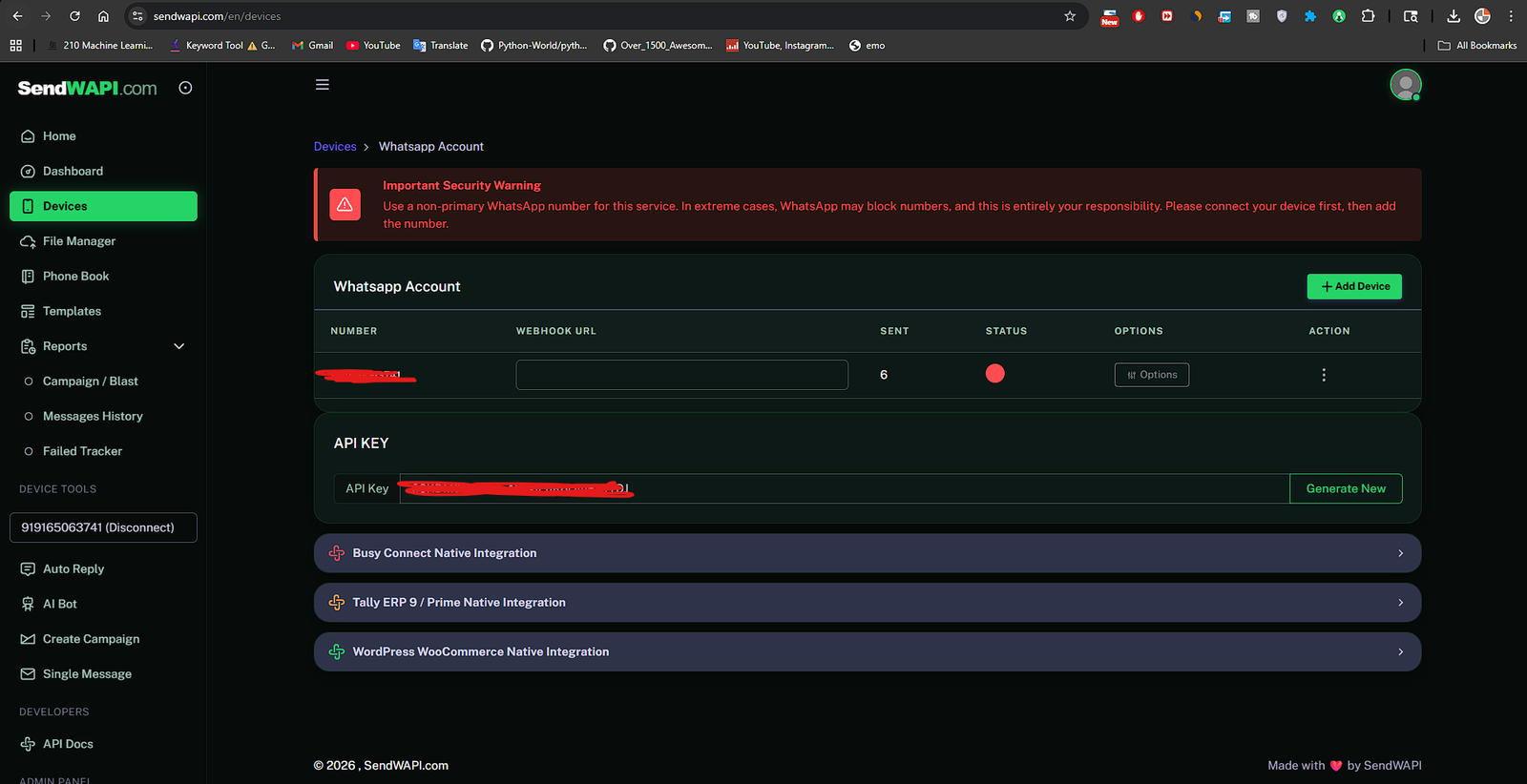
[!IMPORTANT] Your API key looks something like: a1b2c3d4e5f6g7h8i9j0 Keep it private — never share it publicly.1.2 — Note Your Sender Number
- In the SendWAPI dashboard, go to Devices
- Find the WhatsApp number that shows Connected status
- Copy the full number with country code, without the
+sign
[!TIP] Number Format Examples:
| CountryRaw NumberCorrect Format | ||
| India | +91 98765 43210 | 919876543210 |
| Indonesia | +62 888 1234 5678 | 6288812345678 |
| USA | +1 (555) 123-4567 | 15551234567 |
| UK | +44 7911 123456 | 447911123456 |
❌ Wrong:+919876543210,09876543210,98765-43210✅ Right:919876543210
📁 Step 2 — Replace the Customsms.php File
2.1 — Locate the File
The file you need to replace is located at:
your-smart-school/application/libraries/Customsms.php
Full path example (cPanel):
/home/yourdomain/public_html/application/libraries/Customsms.php
2.2 — Backup the Original File
[!WARNING] Always back up the original file before making changes!
- Open your File Manager (cPanel) or connect via FTP
- Navigate to
application/libraries/ - Find
Customsms.php - Right-click → Rename it to
Customsms.php.backup
2.3 — Upload the New File
- Download or copy the new
Customsms.phpfile provided with this guide - Upload it to the same directory:
application/libraries/ - Make sure the filename is exactly
Customsms.php(capital C, lowercase rest)
[!CAUTION] The filename must be exactlyCustomsms.php— notcustomsms.phporCustomSms.php. Linux servers are case-sensitive!
⚙️ Step 3 — Configure API Key & Sender Number
3.1 — Open the File for Editing
- In your File Manager, right-click
Customsms.php→ Edit (or Code Editor) - You will see the file contents
3.2 — Set Your API Key (Line 19)
Find this line:
private $SENDWAPI_API_KEY = "your-sendwapi-api-key";
Replace your-sendwapi-api-key with your actual API key from Step 1.1:
private $SENDWAPI_API_KEY = "a1b2c3d4e5f6g7h8i9j0";
3.3 — Set Your Sender Number (Line 22)
Find this line:
private $SENDWAPI_SENDER = "your-whatsapp-sender-number";
Replace your-whatsapp-sender-number with your WhatsApp number from Step 1.2:
private $SENDWAPI_SENDER = "919876543210";
3.4 — (Optional) Set a Footer Message (Line 28)
If you want a footer text under every WhatsApp message:
private $SENDWAPI_FOOTER = "Sent via Smart School";
Leave it empty ("") if you don't want a footer.
3.5 — Save the File
Click Save Changes in your editor.
[!NOTE] Quick Summary — You only need to change 2 lines:
| LineWhat to ChangeExample | ||
| 19 | your-sendwapi-api-key → your real API key | "a1b2c3d4e5f6g7h8i9j0" |
| 22 | your-whatsapp-sender-number → your WhatsApp number | "919876543210" |
🟢 Step 4 — Enable Custom SMS Gateway in Smart School
4.1 — Log in to Smart School Admin Panel
- Open your Smart School URL:
https://your-school.com - Log in with your Admin or Super Admin account
4.2 — Navigate to SMS Settings
- Go to System Settings → SMS Setting (left sidebar)
- You will see multiple tabs for different SMS gateways
4.3 — Open the Custom SMS Gateway Tab
- Click on the "Custom SMS Gateway" tab (the last tab on the right)
- You will see two fields:
- Gateway Name — Enter:
sendwapi - Status — Select: 4.4 — Save the Settings
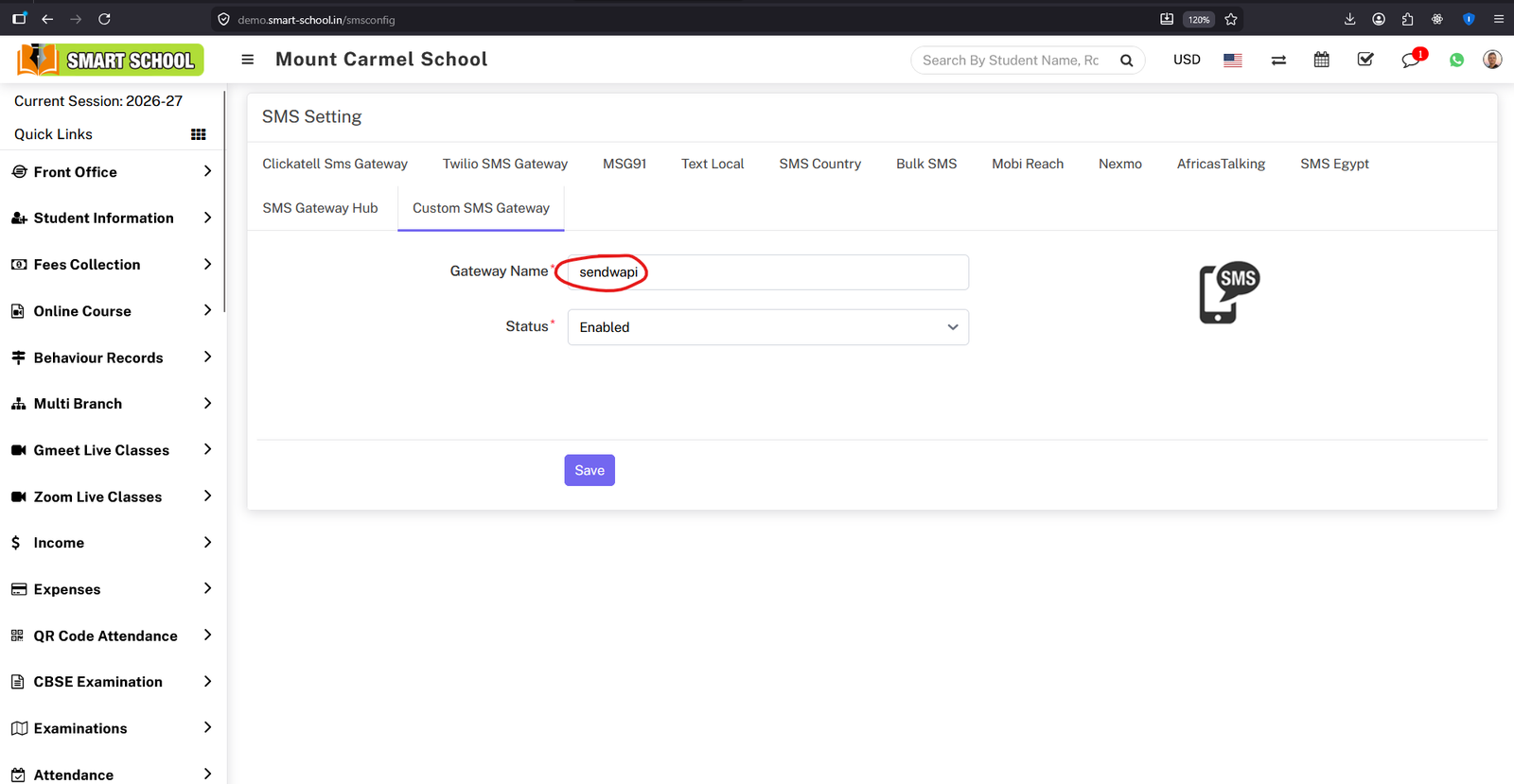
- Click the Save button
- You should see a success confirmation
[!IMPORTANT] Make sure no other SMS gateway is enabled! Smart School only uses ONE active SMS gateway at a time. If Twilio or another gateway is also enabled, go to its tab and set Status to Disabled.
🧪 Step 5 — Test the Integration
5.1 — Send a Test Notification
- Go to Communicate → Send SMS in Smart School
- Select a group (e.g., a single student or parent)
- Type a test message:
Hello! This is a test from Smart School via SendWAPI. - Click Send
5.2 — Verify on WhatsApp
- Check the recipient's WhatsApp
- They should receive the message from your sender number
5.3 — Check Logs (If Message Didn't Arrive)
- Connect to your server via FTP/SSH
- Check the Smart School log file at:
application/logs/log-YYYY-MM-DD.php
- Search for
SendWAPI— you'll see either: - ✅
INFO - SendWAPI message sent to 919876543210 - ❌
ERROR - SendWAPI send failed to 919876543210: Invalid API key
🛠️ Troubleshooting
Common Issues & Solutions
| ProblemCauseSolution | ||
| Messages not sending at all | Custom gateway not enabled | Go to SMS Settings → Custom SMS Gateway → set Status to Enabled |
| Messages not sending at all | Another gateway is also enabled | Disable ALL other gateways (Twilio, Clickatell, etc.) |
Invalid API key error in logs | Wrong API key in Customsms.php | Double-check the key from SendWAPI dashboard |
Sender not found error in logs | Wrong sender number or device disconnected | Check SendWAPI dashboard → Devices → ensure the number is Connected |
cURL error in logs | Server can't reach sendwapi.com | Ask your hosting to allow outbound HTTPS to sendwapi.com |
404 or 500 HTTP error in logs | API endpoint issue | Verify the endpoint is https://sendwapi.com/send-message |
| Message sent but not received | Wrong recipient number format | Ensure recipient numbers in Smart School include country code (e.g., 919876543210) |
| File upload didn't work | Wrong filename casing | File must be exactly Customsms.php (capital C) |
How to Read Log Errors
Open application/logs/log-YYYY-MM-DD.php and search for SendWAPI:
# ✅ Success
INFO - 2026-05-02 23:00:00 --> SendWAPI message sent to 919876543210
# ❌ API Error
ERROR - 2026-05-02 23:00:00 --> SendWAPI send failed to 919876543210: Invalid API key
# ❌ Network Error
ERROR - 2026-05-02 23:00:00 --> SendWAPI cURL error: Could not resolve host: sendwapi.com
# ❌ HTTP Error
ERROR - 2026-05-02 23:00:00 --> SendWAPI HTTP 500: Internal Server Error
📖 API Reference
Endpoint
POST https://sendwapi.com/send-message
Content-Type: application/json
Request Body
{
"api_key": "your-api-key",
"sender": "919876543210",
"number": "918765432109",
"message": "Hello from Smart School!",
"footer": "Sent via Smart School"
}
Parameters
| ParameterTypeRequiredDescription | |||
api_key | string | ✅ Yes | Your SendWAPI API key |
sender | string | ✅ Yes | Your WhatsApp sender number (with country code) |
number | string | ✅ Yes | Recipient number (with country code) |
message | string | ✅ Yes | Message text to send |
footer | string | ❌ No | Footer text below the message |
msgid | string | ❌ No | Message ID to reply to |
full | number | ❌ No | Set 1 for full response with message details |
Success Response
{
"status": true,
"msg": "Message sent successfully!"
}
Error Response
{
"status": false,
"msg": "Invalid API key"
}
📂 File Reference
What Gets Changed
| FileActionLocation | ||
Customsms.php | Replace (only file changed) | application/libraries/Customsms.php |
What Does NOT Change
| FileWhy | |
Smsgateway.php | Already calls Customsms->sendSMS() when custom gateway is active |
smsList.php (view) | Already has the Custom SMS Gateway tab in admin UI |
smsconfig_model.php | Already handles saving/loading custom gateway settings |
| Database | No new tables or columns needed |
[!TIP] Need Help?
- SendWAPI Documentation: sendwapi.com/docs
- SendWAPI Support: sendwapi.com
Last updated: May 2026